
Slide library for people who present for a living

Find the slide you already made.

DeckSift indexes your PowerPoint decks slide by slide, searches what is actually on them — text, charts, screenshots — and builds a new deck from the ones you pick. Formatting survives the trip.

Start freeSee how it works

DeckSift in one minute

14 days, no card. Nothing is charged until you pick a plan.

Everything in the box

Eight tools in one library.

Every plan includes all eight — the trial too.

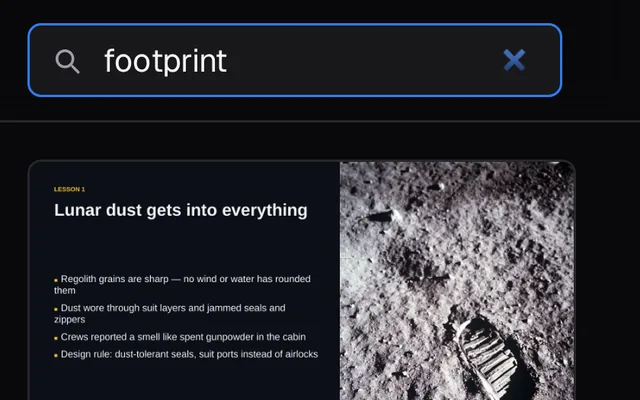
  1. A search for “footprint” finding a slide by the bootprint in its photo
    01

    Full-text search

    Every word on every slide, word forms included — not just file names.

    Text · titles · AI descriptions

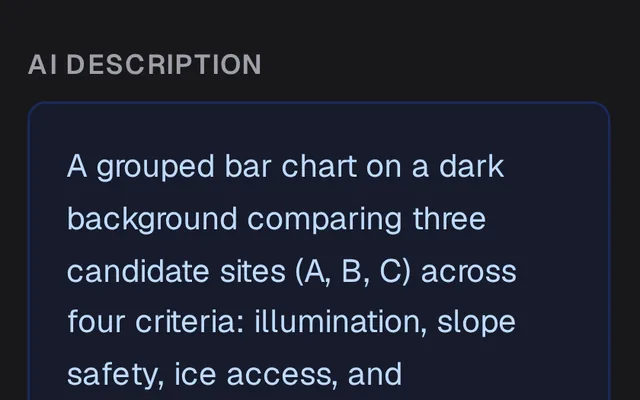
  2. The AI description of a bar chart slide
    02

    AI descriptions

    A short note on what the charts and pictures show, so images become searchable too.

    Written in the slide's language

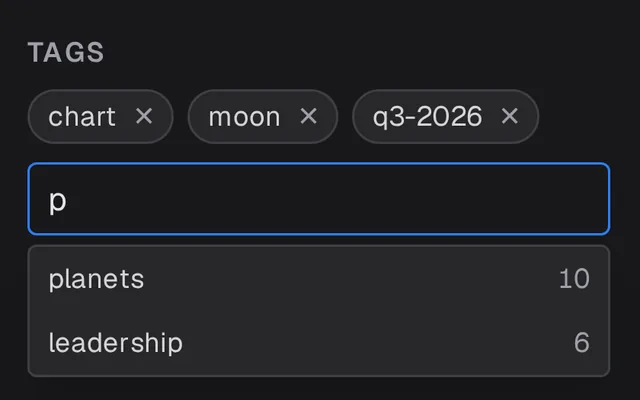
  3. Tags on a slide, with suggestions from the library while typing a new one
    03

    Tags

    Label slides your way and filter the library by any combination of them.

    Rename once, updated everywhere

  4. Personal and team collections with their slide counts
    04

    Collections

    Named, ordered sets of slides — your own, or shared with the whole team.

    Personal · team · copy · share

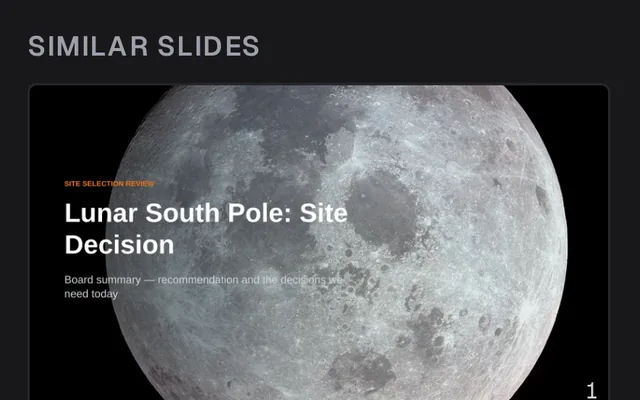
  5. A near-identical version of the slide from another deck, under Similar slides
    05

    Near-duplicates

    See the versions of the same slide side by side before you pick one.

    Same file twice? Caught on upload

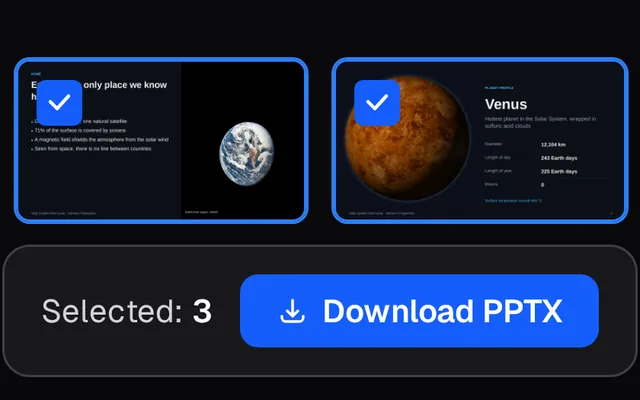
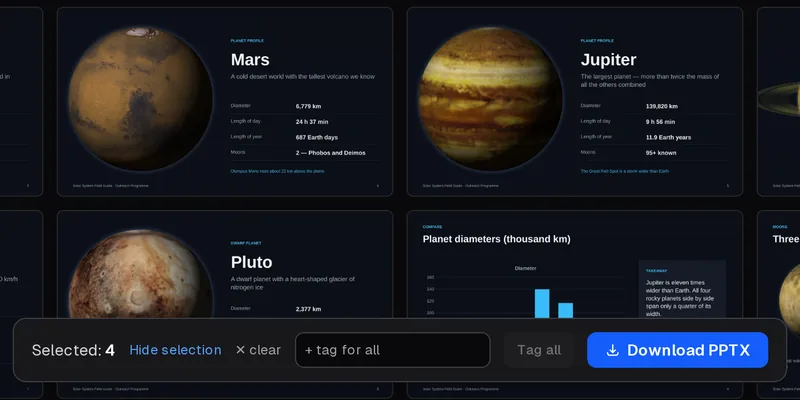
  6. Two selected slides above the bar with the Download PPTX button
    06

    Export to .pptx

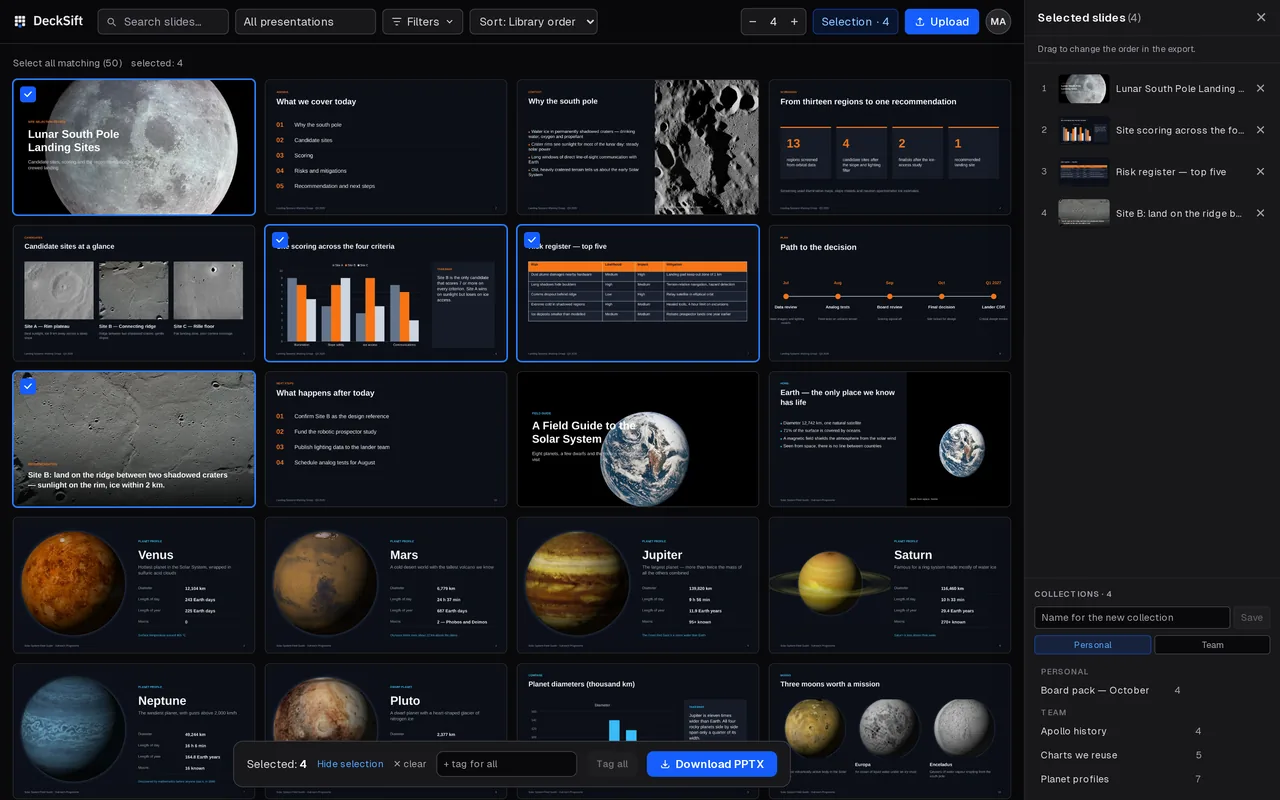
    Pick slides, set the order, download one deck that keeps each source's layouts and fonts.

    Up to 300 slides per export

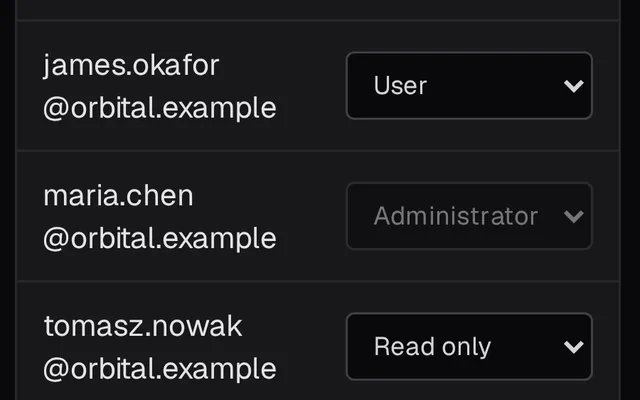
  7. Team members with their roles: administrator, user and read only
    07

    Team & roles

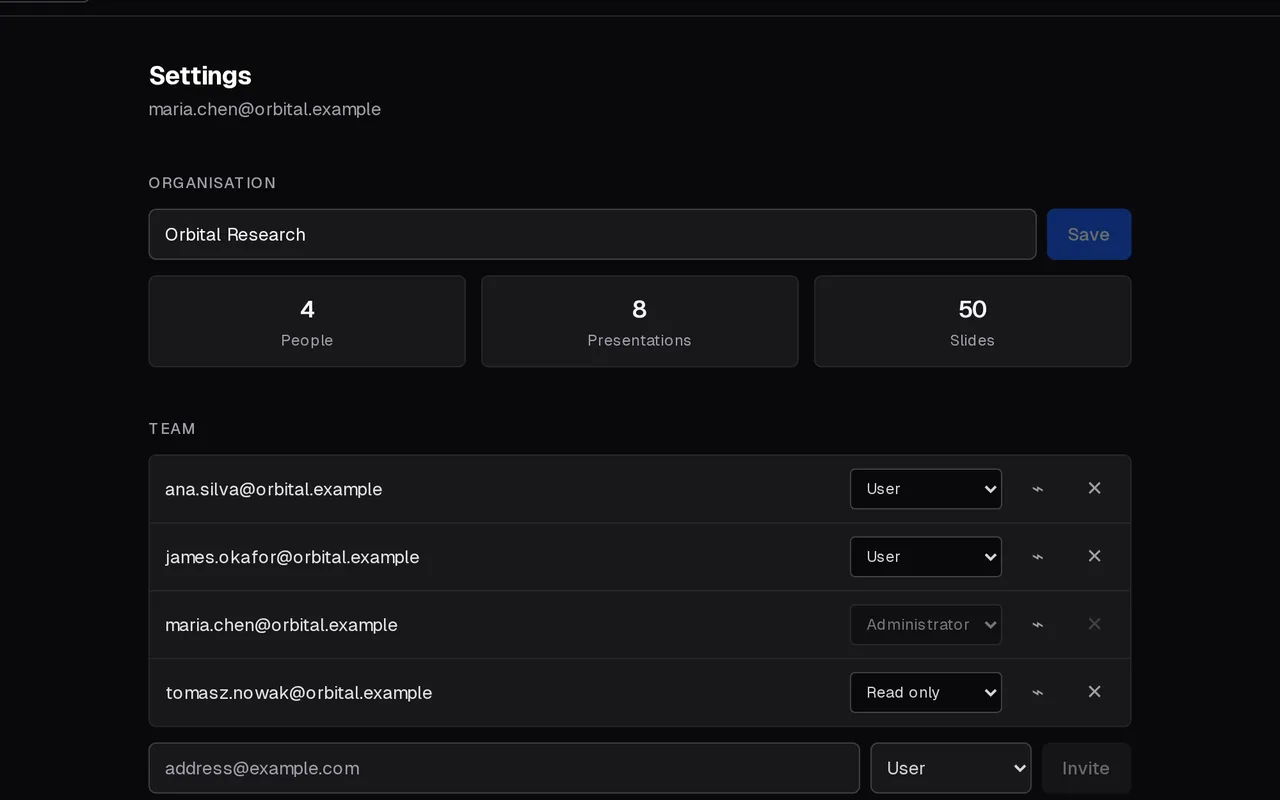
    Admins run the team, users upload and tag, read-only seats search and export.

    See who uploaded what

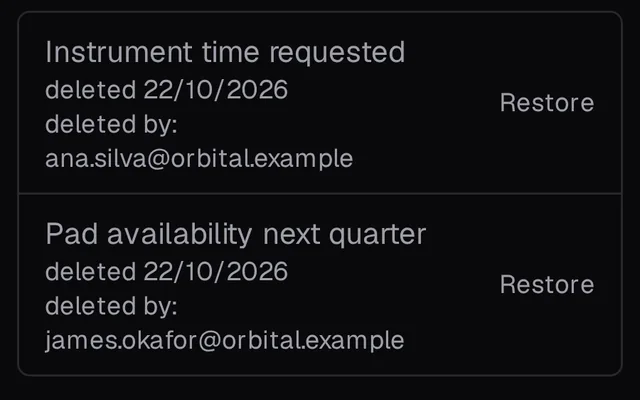
  8. Deleted slides with when and by whom, each with a Restore button
    08

    Trash & restore

    Deleted slides and decks wait in the trash, so a wrong click is one click to undo.

    Nothing lost by accident

The problem

Hundreds of decks. One chart you can't find.

You remember the slide, not the file. So you search by file name, open decks one by one, give up after the sixth — and rebuild from scratch a chart someone already drew last year.

Before · shared drive

312 files · 0 search resultsFile names only

After · DeckSift
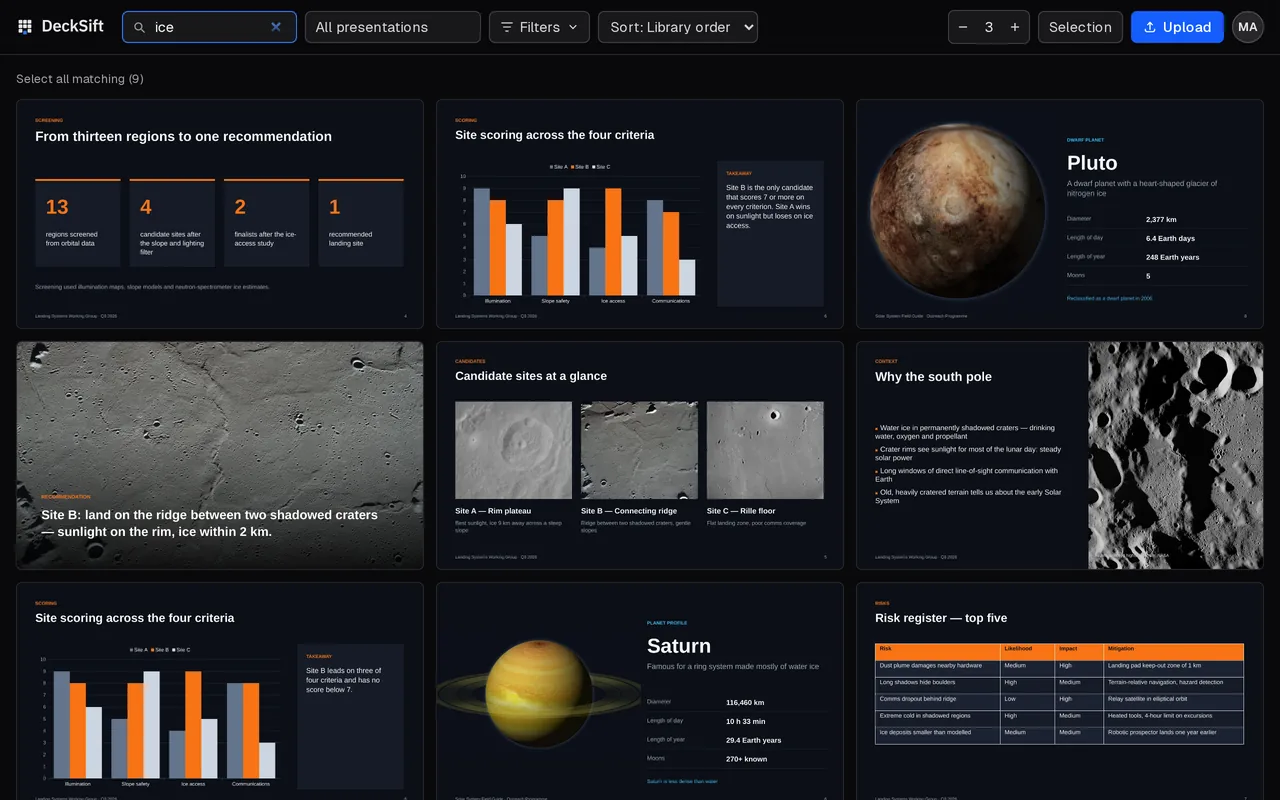
A search for “ice” finding charts, tables and photos from several decks

How it works

Three steps, and the first one is a drag.

  1. Upload the decks you have.

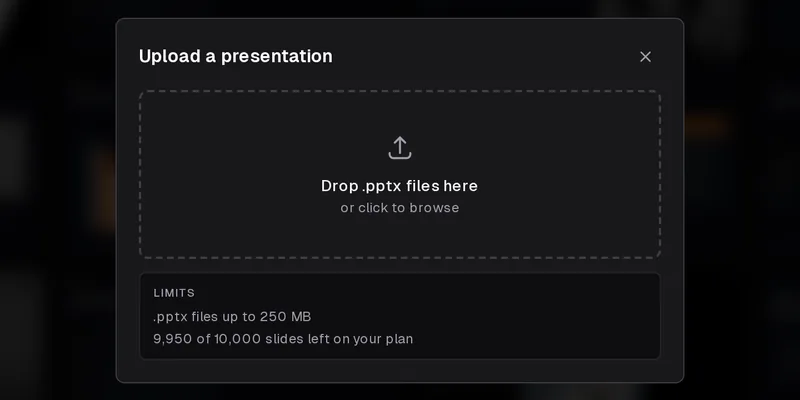
    Drop in a folder's worth of .pptx files, up to 250 MB each. Duplicates are recognised by content, not by name.

    The upload window, ready for .pptx files
  2. Every slide gets indexed.

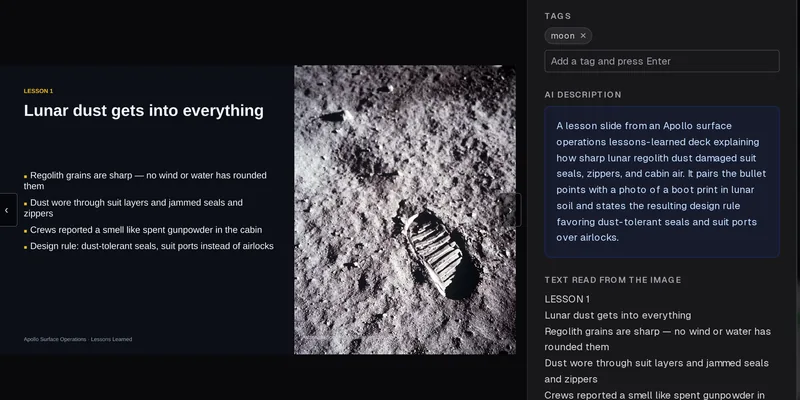
    Text from the file, the title, your tags and an AI description of what the pictures and charts show — in the slide's own language.

    A slide with its tags, AI description and the text read from it
  3. Search, pick, export.

    Full text, filters and collections to find them; one click to export a .pptx that keeps the source formatting.

    Selected slides in the order they will appear in the exported deck

See it work

From a library of decks to a new deck in a minute.

Search

Search what's on the slide, not in the file name.

Full text with word forms, plus the AI description of every chart and picture. Type what you remember; get the slide, the deck and the page number.

In the box: 01 Full-text search · 02 AI descriptions
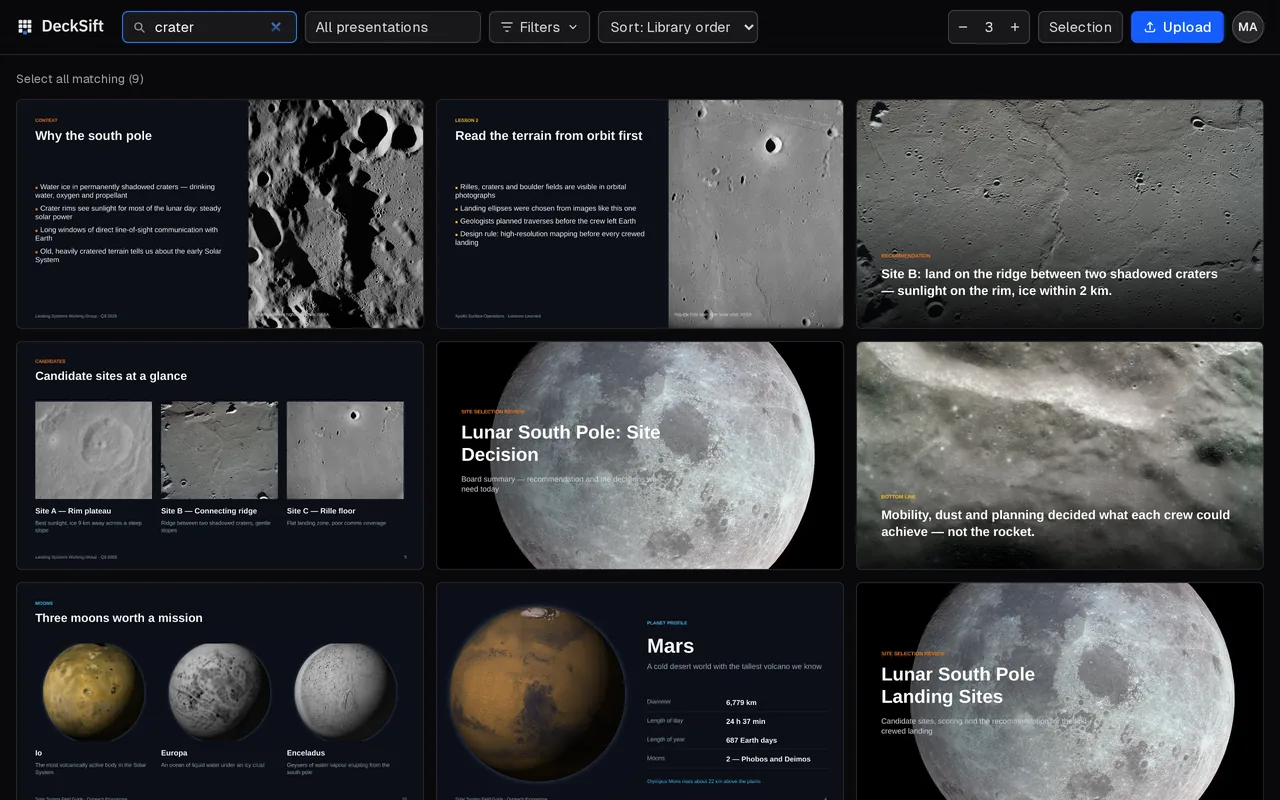
Search results for “crater” across several decks

Build

Build a deck in minutes.

Tick the slides, drag them into order, export. Layouts, masters and fonts come along from each source deck, so the new file looks like the old ones did.

In the box: 05 Near-duplicates · 06 Export to .pptx

Four slides picked in the gallery and arranged in the selection panel

Team

One library for the whole team.

Roles for who can change what, personal and team collections, a record of who uploaded which deck — and a trash that gives back what someone deleted.

In the box: 04 Collections · 07 Team & roles · 08 Trash & restore

Organisation settings: people, presentations, slides and the team with roles

Your data

Your decks stay yours.

Stored in the EU, never used to train models, exportable whenever you like, and deleted after you leave. The details are in plain English in the privacy policy.

  • Stored in the EUFiles, thumbnails and the database live in EU data centres — and AI descriptions are written there too.
  • Not used for trainingYour slides don't train anyone's model — ours or our AI provider's.
  • Export any timeDownload as .pptx on any plan, and for 30 days after your access ends.
  • Deleted when you leaveFiles and data are removed 90 days after your subscription ends.

Pricing

Priced by team size. Every feature in every plan.

Start with 14 days free, no card. Pay monthly, or yearly and get 2 months free.

  • Solo$19 / month1 person · 1,000 slides
  • Small$49 / month5 people · 2,500 slides
  • Medium$299 / month30 people · 10,000 slides
  • Large$799 / month100 people · 30,000 slides

AI descriptions for every slide on paid plans. Prices in US dollars, excluding VAT/sales tax, added at checkout.

See full pricing

FAQ

Questions, answered.

Something else? Write to [email protected] — a person answers.

Does DeckSift change my original files?
No. The file you upload stays exactly as it was. Export builds a brand-new .pptx from the slides you picked; the source decks are never modified.
What formats are supported?
PowerPoint (.pptx). Google Slides and Keynote both export to .pptx — upload that file and it works the same way.
How big can a deck be?
Up to 250 MB per file, embedded video included. Upload as many files as your plan's slide limit allows.
Which languages does search work in?
Any language your slides are written in. AI descriptions follow the language of the slide, so a German deck gets German descriptions and stays searchable in German.
Is my material used to train AI?
No. Only a slide's image goes to the AI model, which runs on Amazon Bedrock in the EU, solely to write its description. It isn't stored there and isn't used to train any model — ours, Amazon's or the model developer's.
What happens when I cancel?
You keep access until the end of the period you paid for. After that you have 30 days to export anything you need, and your data is deleted 90 days after the subscription ends.

Start with the decks you already have.

Upload a few presentations and search them in minutes. 14 days free, no card.